Google Analytics
Prerequisites for Configuring Google Analytics Data Source
Account Requirements
- A Google Analytics account with access to the GA Property(Property Ids) you want to sync
Create a Service Account
- Sign in to your Google Account as an admin
- Go to the Service Accounts page in Google Developers console
- Select/create project and click Continue
- Click + Create Service Account
- Enter name and description, click Create and Continue
- Choose role (recommended: Viewer role)
- In Keys tab, click Add Key > Create New Key
- Select JSON as Key type and download the file
Enable Required APIs
Enable the following APIs in your project:
- Google Analytics Reporting API
- Google Analytics API
- Google Analytics Data API
Service Account JSON Key
- Go to API Console/Credentials
- Select the service account email
- Click Actions > Manage Keys
- Add Key > JSON
- Download the generated key
Client ID & Client Secret Setup
Create OAuth Consent Screen:
- Go to API Console/Credentials > OAUTH Consent Screen
- Choose External/Internal
- Fill required information
- Add developer contact email
Create OAuth 2.0 Credentials:
- Go to Credentials > Create Credentials
- Select OAuth 2.0 Client ID
- Choose Web application
- Fill required fields
- Save Client ID and Secret
Generate Authorization Code
Use the following URL format:
https://accounts.google.com/o/oauth2/auth?client_id=YOUR_CLIENT_ID&redirect_uri=YOUR_REDIRECT_URI&response_type=code&scope=https://www.googleapis.com/auth/analytics.readonly&access_type=offline
Exchange Authorization Code for Refresh Token
Make a POST request:
curl --request POST \
  --data "code=AUTHORIZATION_CODE&client_id=YOUR_CLIENT_ID&client_secret=YOUR_CLIENT_SECRET&redirect_uri=YOUR_REDIRECT_URI&grant_type=authorization_code" \
  https://oauth2.googleapis.com/token
Example response:
{
  "access_token": "ACCESS_TOKEN",
  "expires_in": 3600,
  "refresh_token": "REFRESH_TOKEN",
  "scope": "https://www.googleapis.com/auth/analytics.readonly",
  "token_type": "Bearer"
}
Get Property ID
- Navigate to Google Analytics Console
- Select Account and Property
- Go to Admin > Property Settings > Property Details
- Copy the Property ID
Custom Report Specification
Example custom report:
[
  {
    "name": "User Engagement Report",
    "dimensions": ["city"],
    "metrics": ["sessions", "bounceRate"]
  }
]
Configuring Google Analytics Data Source
Select the Source Type as Google Analytics (Universal Analytics)
Fill in the required details:
OAuth Authentication
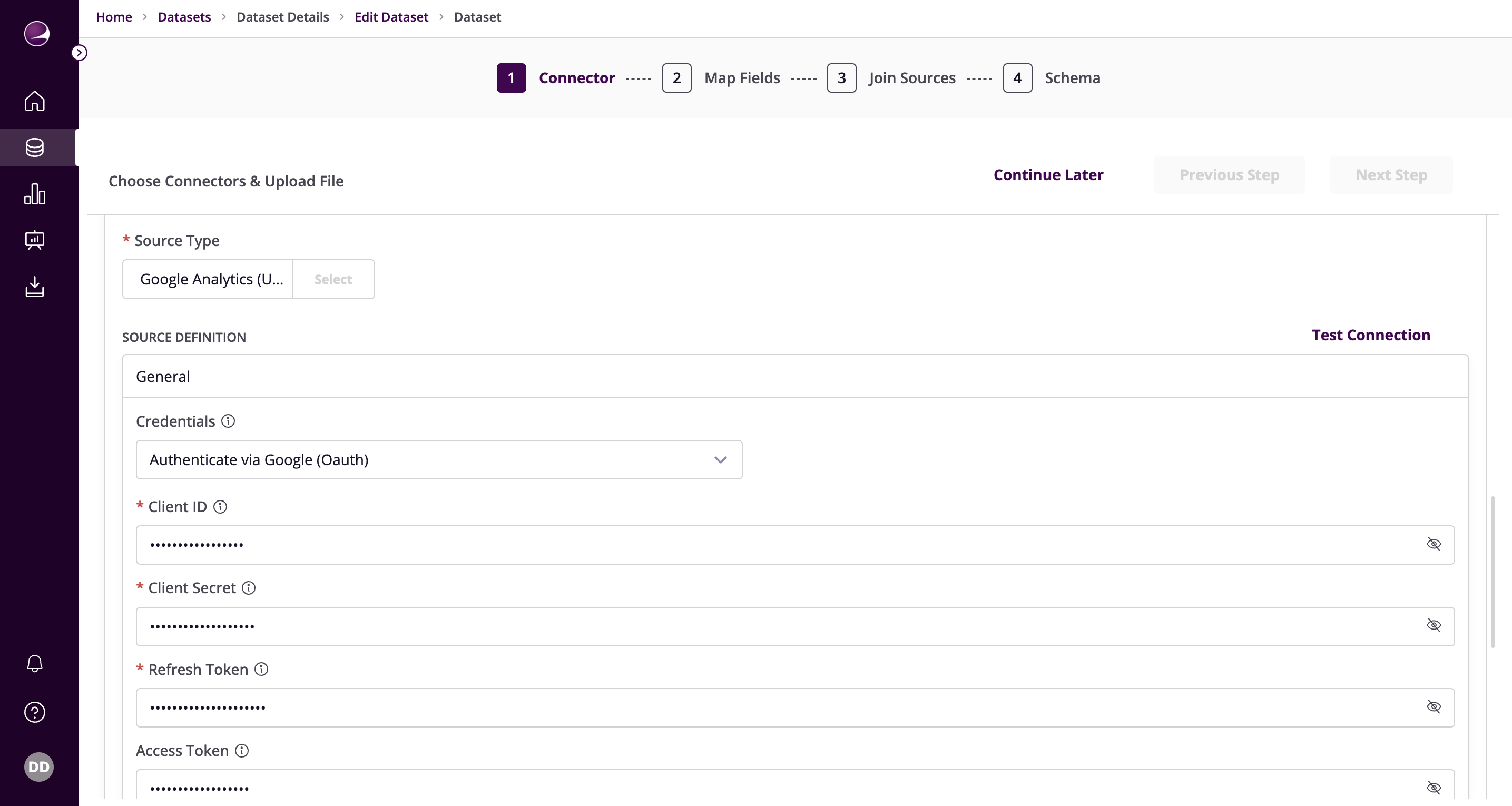
- Client ID
- Client Secret
- Refresh Token
- Access Token
- Property ID
Service Account Authentication
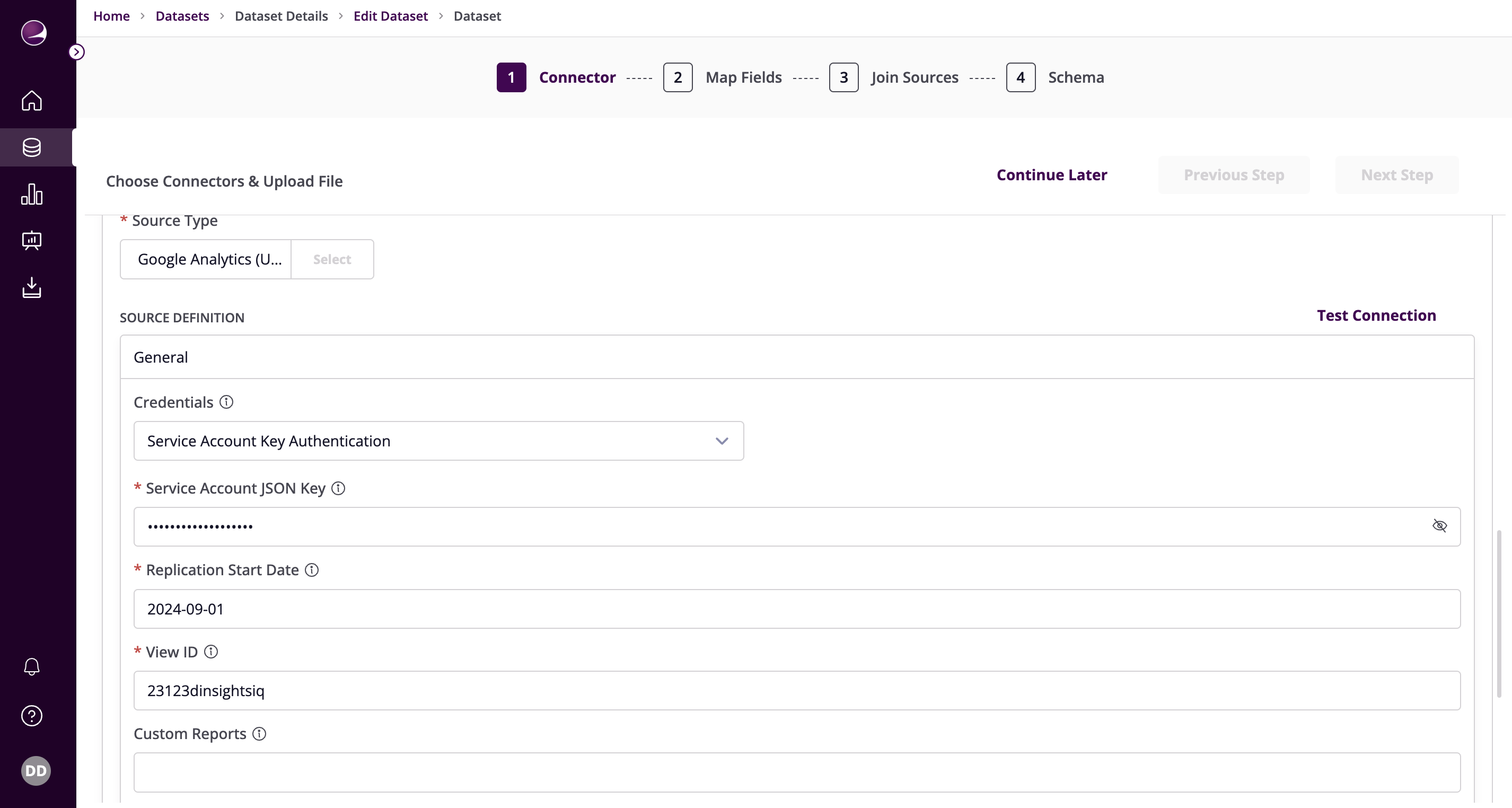
- Service Account JSON Key
Additional Configuration
Replication Start Date - Format: YYYY-MM-DD
- Example:
2021-01-01
- Example:
View ID - The ID for the Google Analytics View
Custom Reports - JSON array describing custom reports
Data request time increment in days - Time increment for API requests (1-364 days)
- Example values: 30, 60, 90, 120, 200, 364
- Recommended: 1 for accuracy
- Click on Test Connection to verify if the connection is established successfully.