Snapchat Marketing
Prerequisites for Configuring Snapchat Marketing Data Source
- Set up a Snapchat Business account
- Activate Access to the Snapchat Marketing API
Add the OAuth2 App
- Adding the OAuth2 app requires the
redirect_urlparameter. - If you have the API endpoint that will handle the next OAuth process, write it to this parameter.
- Save the Client ID and Client Secret.
Obtain a Refresh Token
- Open the authorize link in a browser. It will look similar to this:
https://accounts.snapchat.com/login/oauth2/authorize?response_type=code&client_id=CLIENT_ID&redirect_uri=REDIRECT_URI&scope=snapchat-marketing-api&state=wmKkg0TWgppW8PTBZ20sldUwerf-m - Login & Authorize via UI.
- Locate the
codequery parameter in the redirect. - Exchange the code for an access token and refresh token. Your request will appear similar to the following:
curl -X POST \
-d "code={one_time_use_code}" \
-d "client_id={client_id}" \
-d "client_secret={client_secret}"  \
-d "grant_type=authorization_code"  \
-d "redirect_uri=redirect_uri" \
https://accounts.snapchat.com/login/oauth2/access_token - For more information on authenticating into the Snapchat API, read their documentation here. You will receive the API key and refresh token in the response. Use this refresh token for the connector.
Configuring Snapchat Marketing Data Source
Select the Source Type as Snapchat Marketing
Fill in the required details:
- Client ID, Client Secret, Refresh Token: Enter the credentials obtained from the prerequisites step
- Start Date: Date in the format
YYYY-MM-DD. Any data before this date will not be replicated.- Example:
2022-01-01
- Example:
- End Date: Date in the format
YYYY-MM-DD. Any data after this date will not be replicated.- Example:
2022-01-30
- Example:
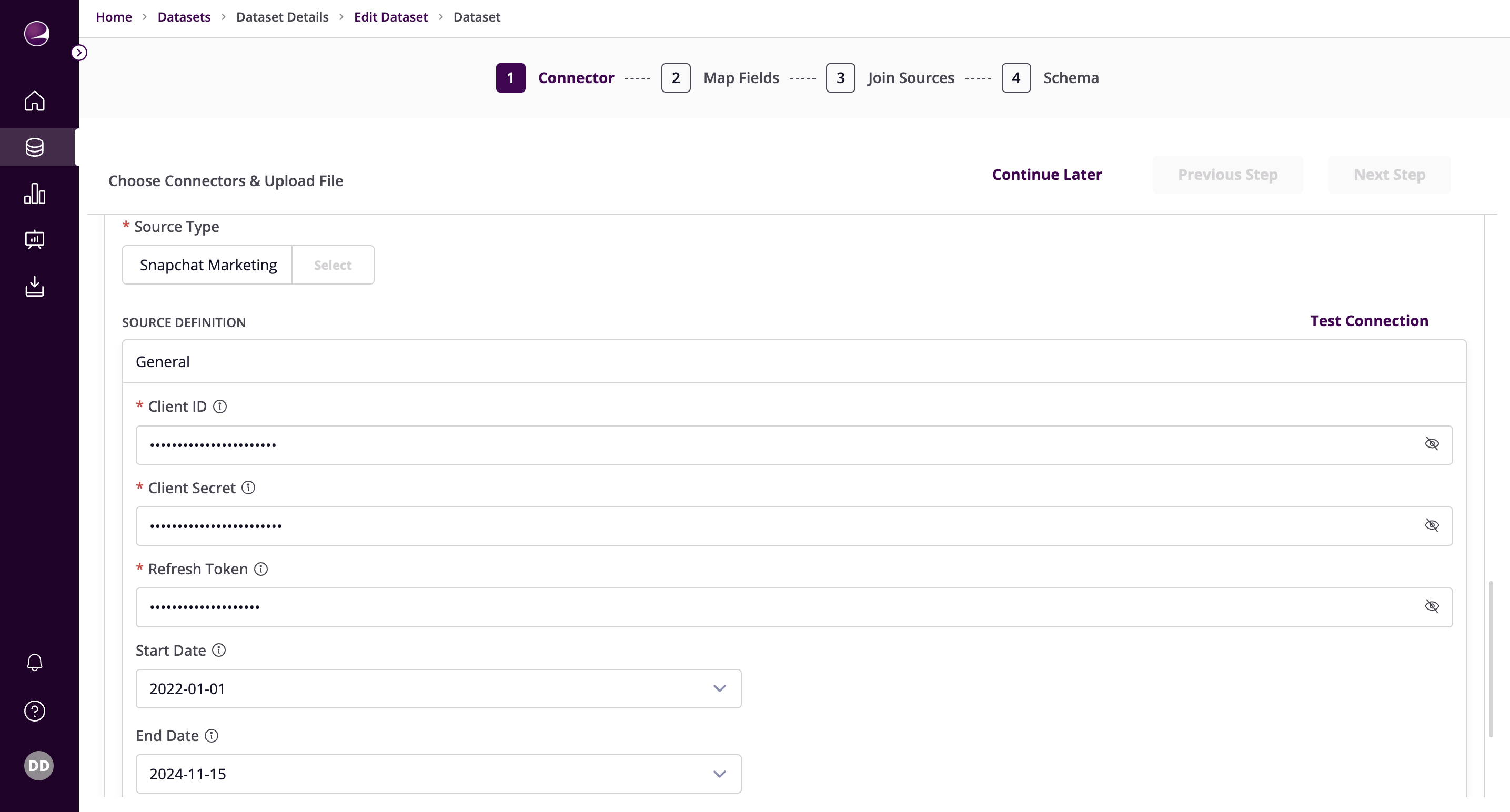
- Click on Test Connection to verify if the connection is established successfully.