Trigger Downloads
Overview
This section describes how you can easily trigger a download and access the downloaded file. Triggering a download within the tool enables you to create files and access them through the downloads listing, ensuring they are available for retrieval and offline usage.
Expected Outcome: By the end of this guide, you will have a complete understanding of how to trigger a download and access the downloaded file.
Pre-requisites
- You have the datasets created for triggering the download.
Step 1: Triggering Download
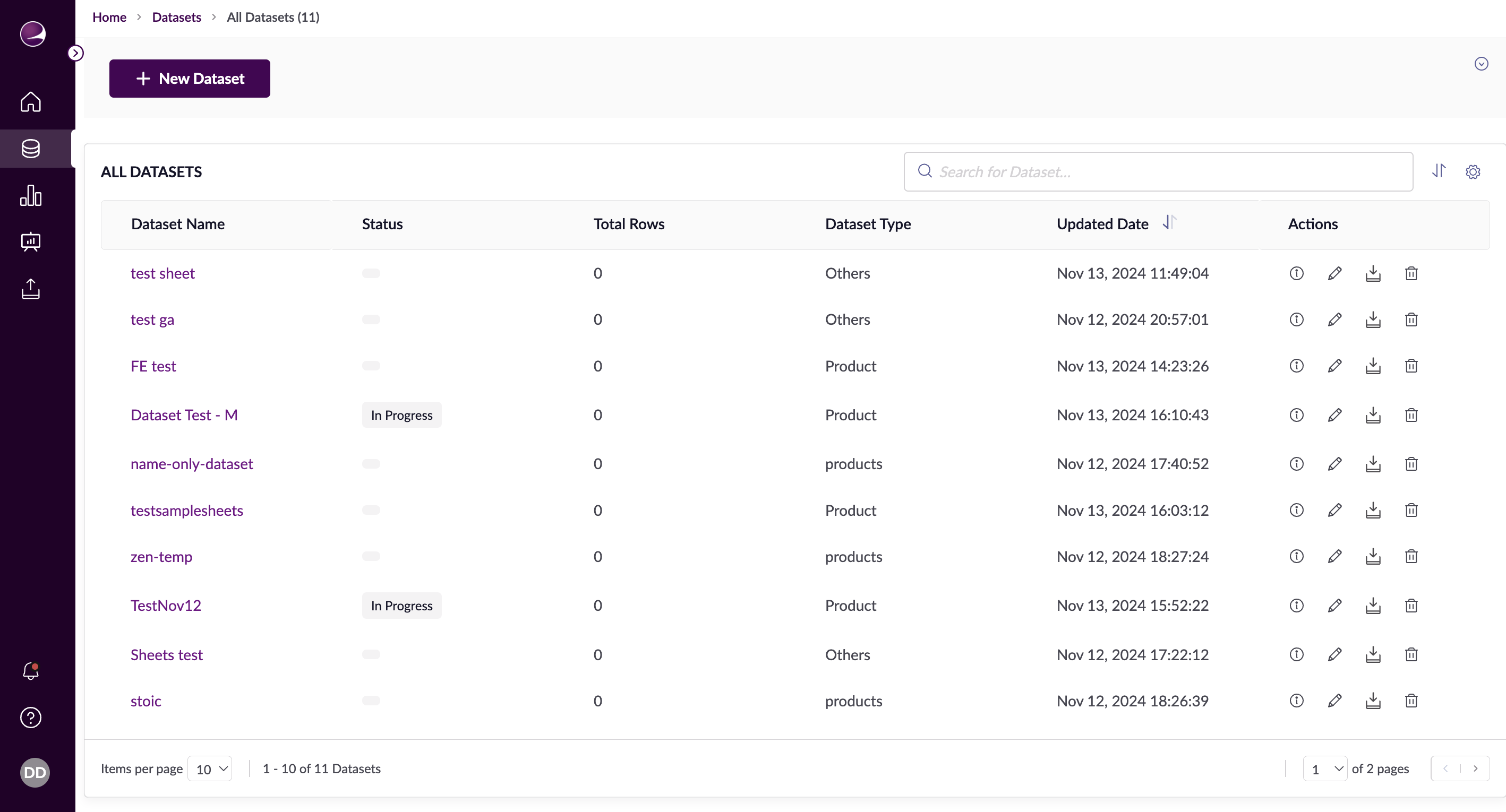
To trigger a download file for a dataset, click the 'Download' button in the Actions column of the datasets listing.
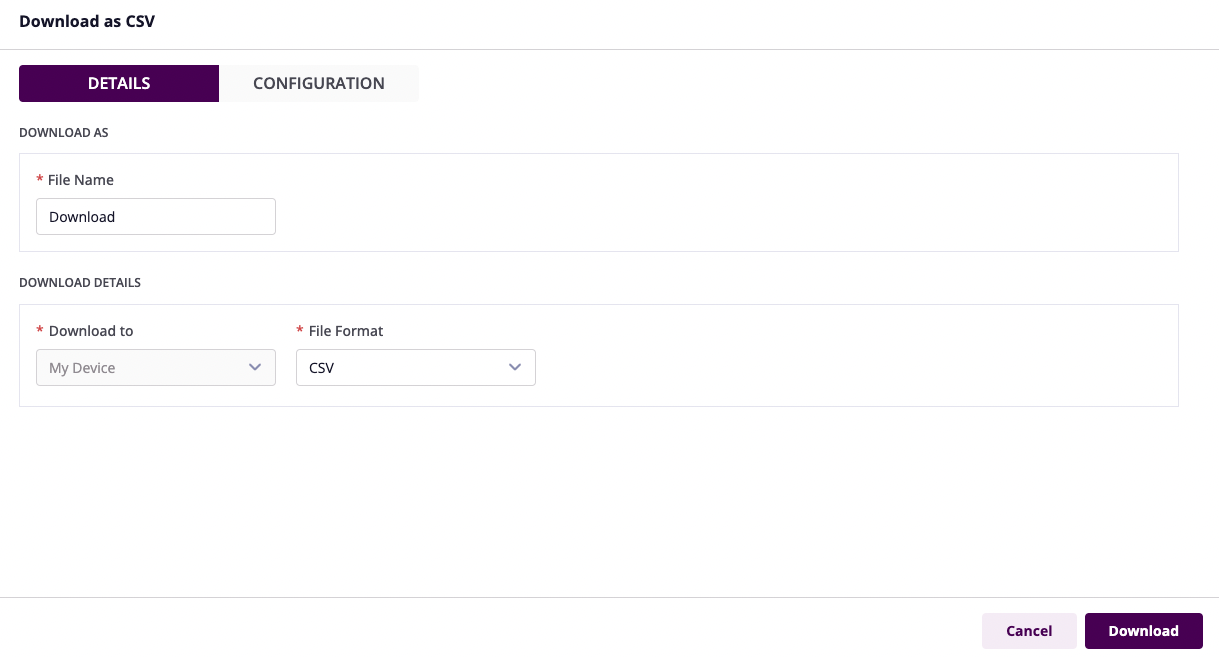
In the Download pop-up:
Details section:
- Enter the File Name.
- Select the file format.
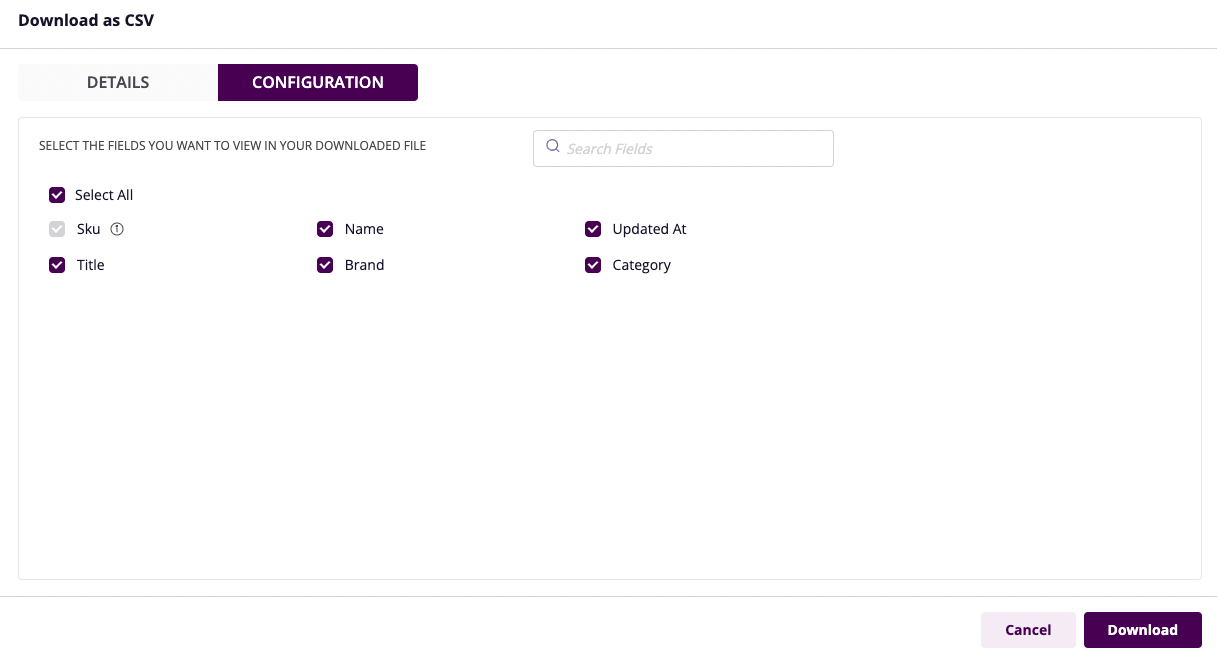
Configuration section:
- Select the fields that you want to view in the downloaded file.
- Primary key field will always be selected.
- You can search for a field in the search bar.
Click on the 'Download' button to trigger the download file. You will see a banner with this information - 'File is being prepared. Check Downloads' and a 'View' button.
Click on the 'View' button. It will navigate you to the Downloads listing.
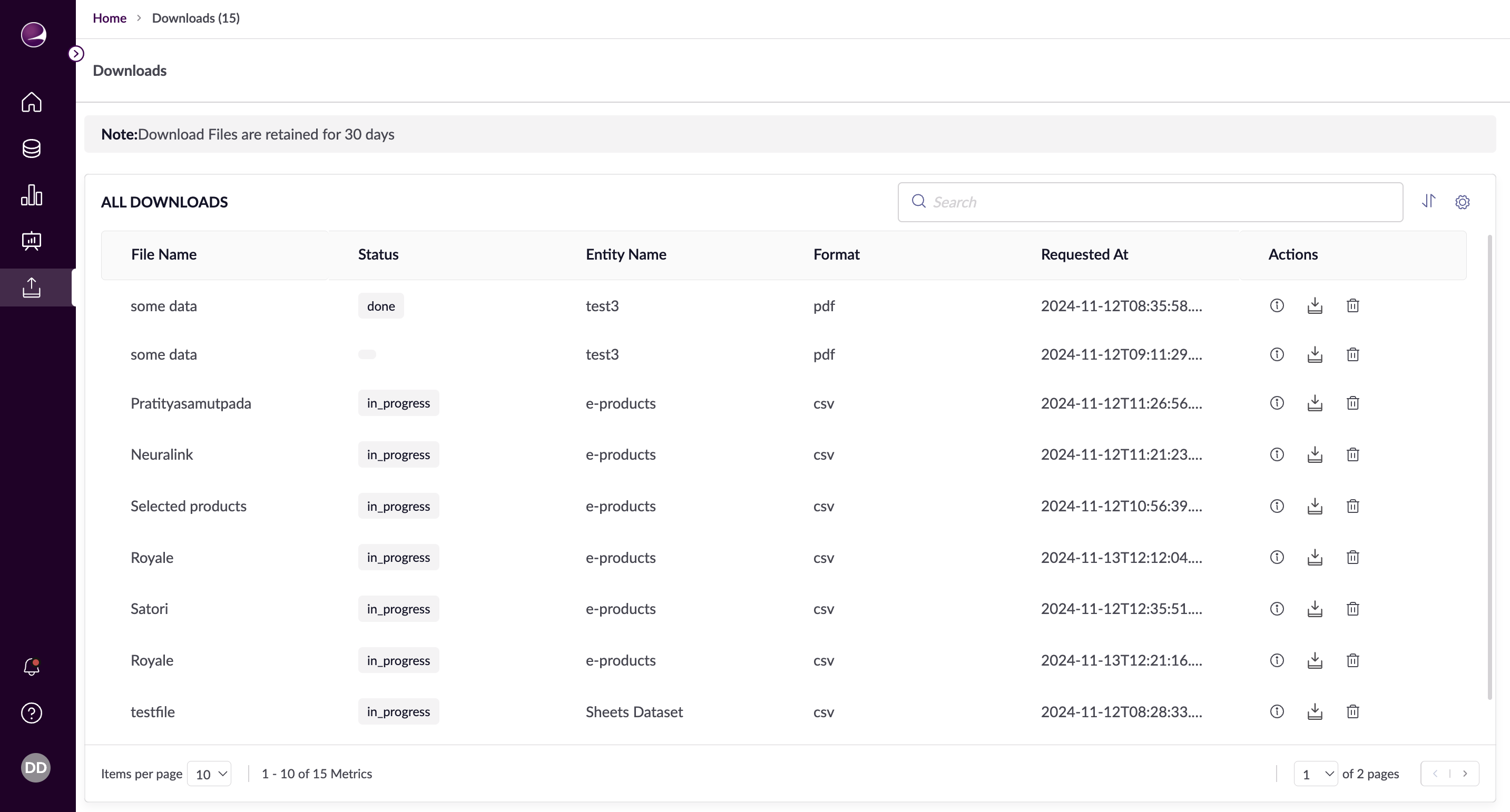
Step 2: Downloads Listing
In the Downloads Listing, you will be able to see the file triggered for download along with the status. Once the status is 'Ready' for the file, you can download the file to your local storage by clicking on the 'Download' button.
- You can view the name of the entity from which the download was triggered.
- You can view the file format and 'Requested At' timestamp for the file.
- Click on the Info button to view the information of the file.
- You can delete the file by clicking on the 'Delete' button.
Other Actions:
- Search File: Use the search bar to look for a download file by name or select from your recently searched keywords. The search results will be displayed in the table for convenient access.
- Sort Columns: Hover over a column header to sort through the data within that column, either in ascending or descending order.
- Filtering Columns: Hover over a column header to filter through the data via the filter options.