Configuring Dropdown Controls
Overview
Dropdown Controls are essential tools for filtering data within reports based on user-selected values. They provide an intuitive way to refine visualizations and focus on specific aspects of your data.
Getting Started
Before configuring a Dropdown Control, ensure you have:
- A dataset with categorical or numerical data
- Charts added to your report
- Clear understanding of filtering needs
Business Value
- Target specific data segments
- Enhance report interactivity
- Optimize insight generation
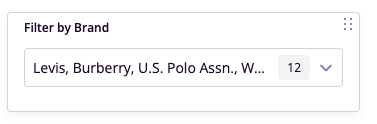
Control Configuration
Basic Configuration
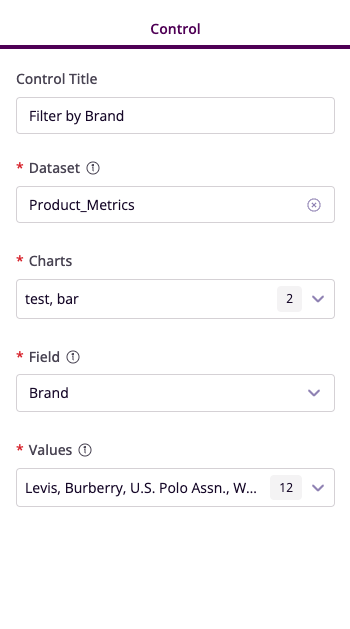
- Control Title: Set meaningful name
- Dataset: Select data source
- Charts: Choose affected visualizations
Field Configuration
- Select Field: Choose column for filtering
- Choose Values: Define available options
- Set Default: Configure initial selection
Advanced Features
Chart Linking
- Select target charts
- Configure update behavior
- Set interaction rules
Value Management
- Filter available values
- Set multiple selection options
- Configure sorting order
Example Use Cases
Product Category Analysis
- Control Title: Product Category Filter
- Field: Product Category
- Charts: Revenue, Profit
- Purpose: Category performance analysis
Regional Performance
- Control Title: Region Filter
- Field: Region
- Charts: Campaign metrics
- Purpose: Geographic analysis
Best Practices
Naming Conventions
- Use clear, descriptive titles
- Indicate filter purpose
- Maintain consistency
Value Selection
- Include relevant options
- Consider default selections
- Organize logically
Chart Integration
- Link related visualizations
- Enable multi-chart filtering
- Ensure consistent behavior