Reports Listing Screen
The Reports Listing screen provides access to all your created reports and allows you to manage them efficiently. From here, you can create new reports, edit, preview, search, and delete existing ones.
Navigating to the Reports Listing
From the InsightsIQ application, click on the Reports in the navigation bar.
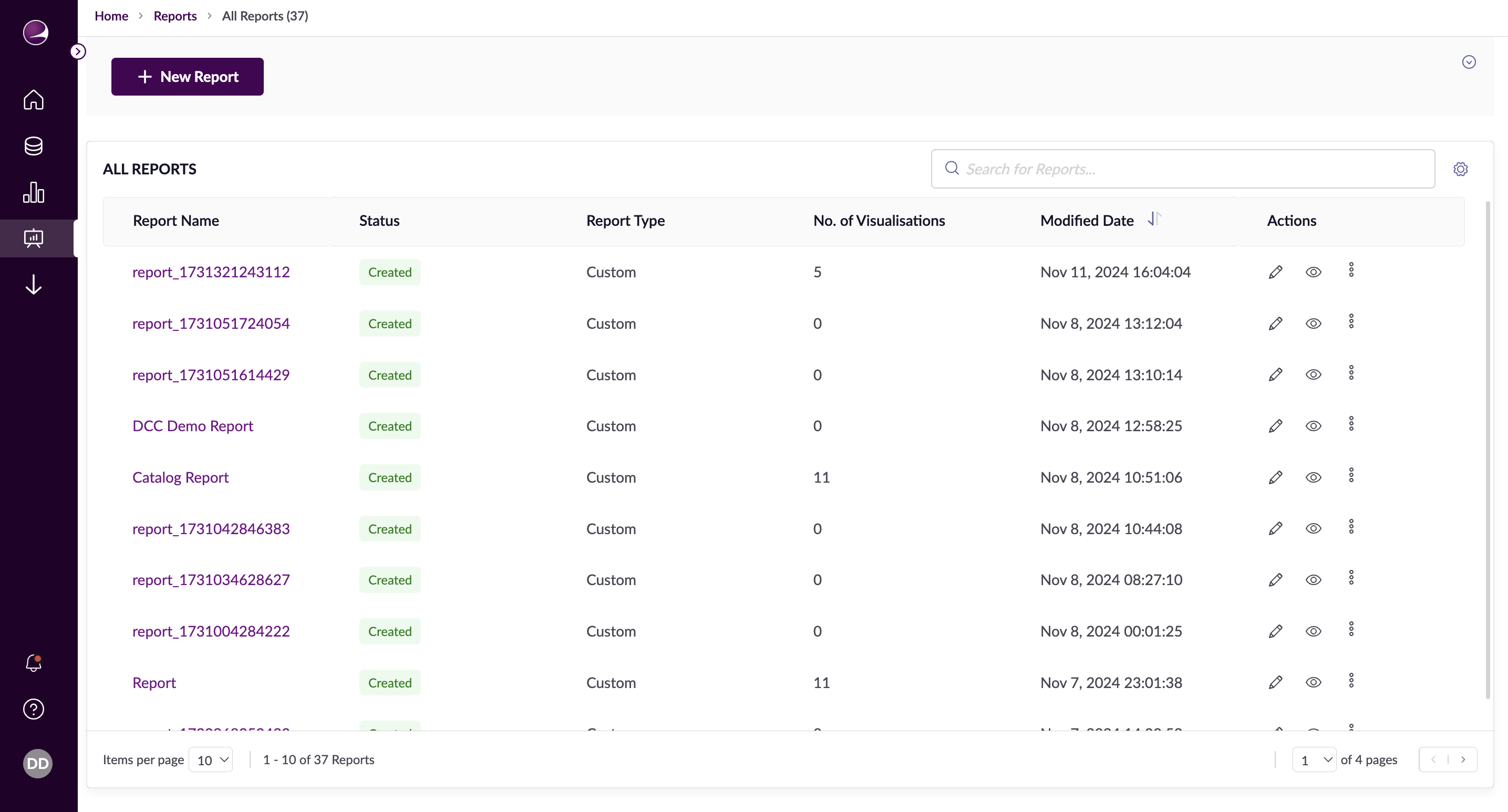
Search Reports
- Use the search bar to look for reports by name or select from your recently searched keywords.
- The search results will appear in a table for easy access.
Sorting Columns
- Hover over a column header to sort the data within that column, either in ascending or descending order.
Filtering Columns
- Hover over a column header to filter the data via the filter options.
Creating Reports
- New Report: Click the "+ New Report" button to create a report from scratch. Set up your report and click Save to add it to the list.
- Suggested Reports: Choose from pre-configured templates designed for common use cases. Select a template, then customize the settings, filters, and visualizations to suit your needs.
Managing Reports
On the Reports Listing page, you can perform the following actions:
- Viewing Reports: Click on a report’s name or the Preview icon to view its visualizations and metrics in detail.
- Editing Reports: Click the Edit icon next to a report to update its name, visualizations, or other settings.
- Deleting Reports: Select the report you want to delete and click the Delete action. A confirmation prompt will ensure you don’t delete reports by mistake.