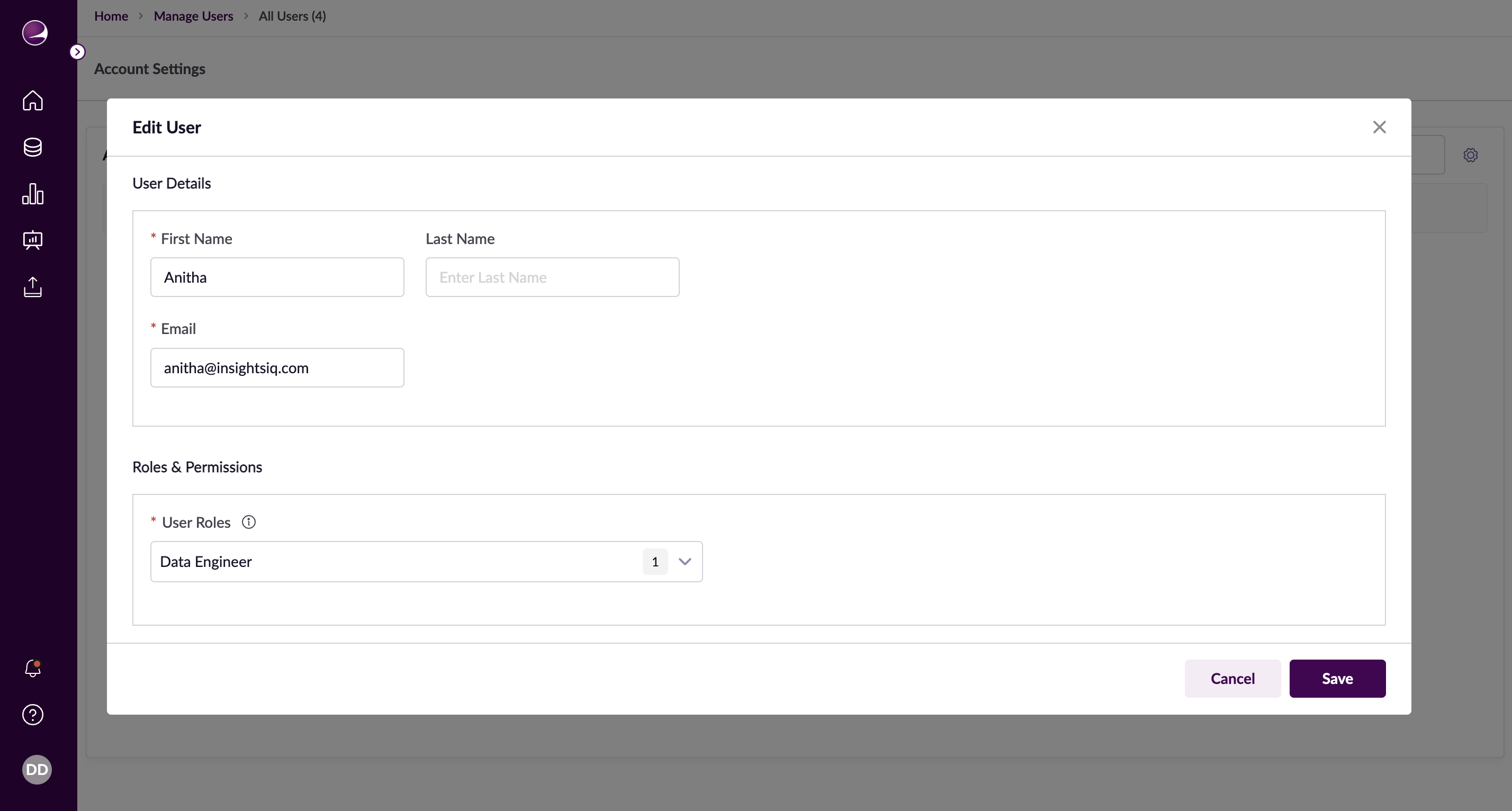
Listing
Creating a New User
To create a new user, click the + New User button from the User Listing page.
Enter User Details
- First Name: Enter the user’s first name.
- Last Name: Enter the user’s last name.
- Email ID: Enter the user’s email address. This will serve as their unique identifier and cannot be changed later.
- User Roles: Select the appropriate roles for the user from the dropdown list. Roles define the permissions and access levels within the application.
Actions
- Create: Click Create to add the user. A confirmation message will appear, and you will be redirected to the User Listing page. The user will automatically receive an activation email to set up their password.
- Cancel: Click Cancel to discard the user creation process and return to the User Listing page without saving.
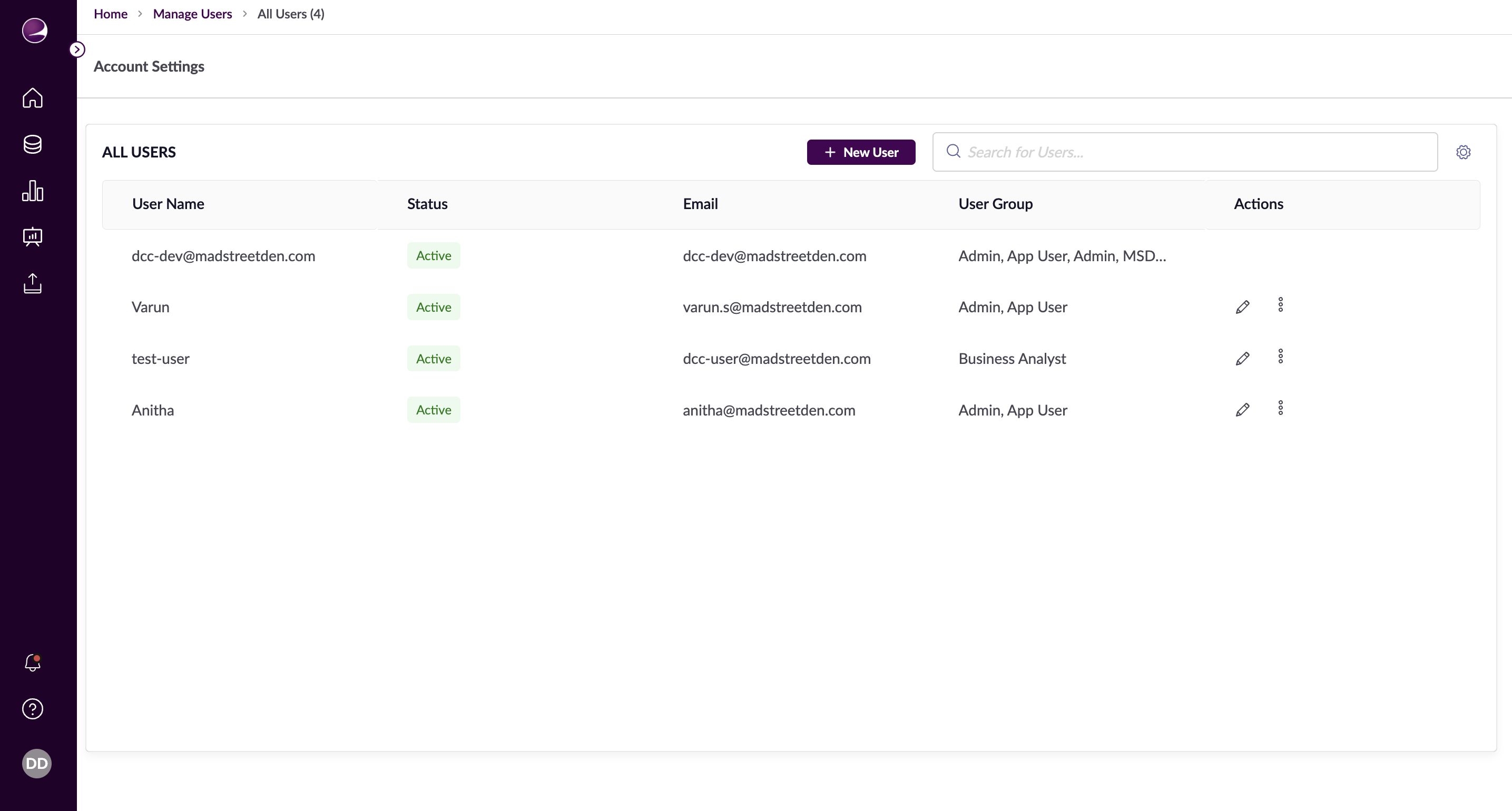
Editing an Existing User
In the User Listing, find the user you want to edit and click the Edit icon in the Actions.
Edit User Details
- First Name and Last Name: Update the names as needed.